HP
HP Dell
Dell


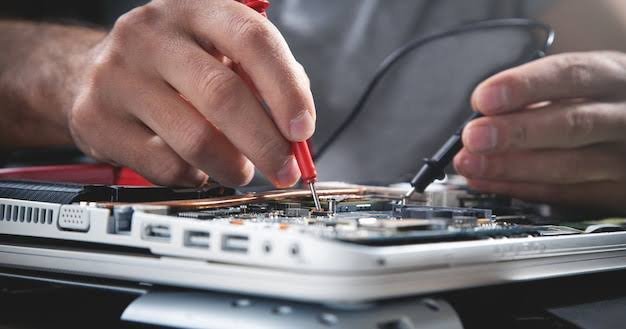
Deep hardware checks are essential before buying a used laptop.. Source: Magnific
Buying a refurbished or used laptop is one of the smartest financial decisions you can make. You can often secure premium, business-grade hardware for the price of a budget machine. However, the pre-owned market can be a minefield of failing motherboards, depleted batteries, and disguised physical damage.
To ensure you don’t end up with a high-tech paperweight, you need to go beyond just turning the screen on. Whether you’re buying locally or from an online marketplace, follow this 15-point diagnostic checklist to verify every crucial hardware component.
Phase 1: The Visual and Physical Inspection
Before booting into Windows, start with the chassis. Physical damage often indicates how the previous owner treated the internal components.
1. The Hinge and Chassis Flex Test
Open and close the laptop lid multiple times. The resistance should be smooth and consistent. Listen for cracking plastics or popping noises, which often indicate that the internal brass threaded inserts (which hold the hinge to the motherboard chassis) are broken.
2. Screen Dead Pixels and Backlight Bleed
Don’t just look at the desktop wallpaper. Open a web browser, go to YouTube, and search for a “Dead Pixel Test” video (a video that cycles through pure red, green, blue, black, and white screens).
- Look for: Stuck pixels (tiny bright dots that won’t change color) and excessive backlight bleed (bright white light leaking from the edges of the screen on a black background).
3. Keyboard Actuation and Trackpad Precision
Test every single key. Don’t just type a sentence; open Notepad and press every key sequentially, including Function (Fn) keys, spacebar, and numpad. For the trackpad, verify two-finger scrolling, pinch-to-zoom, and ensure the left and right physical clicks respond without feeling “mushy.”
4. I/O Ports and Connectivity
Bring a USB flash drive and plug it into every USB port.
- Does it recognize instantly?
- Is the physical port wobbly? A loose USB port is often soldered directly to the motherboard; fixing it requires advanced micro-soldering.
- Check the headphone jack for static and verify the HDMI/Type-C display outputs if possible.
Phase 2: Internal Core Diagnostics (The Hardware Heart)
Now it’s time to check what’s under the hood. You don’t need a screwdriver for this—just a few built-in tools and free software.
5. Battery Health and Cycle Count
Never trust the battery percentage in the bottom right corner. Windows can generate a detailed battery health report in seconds.
- Open Command Prompt as Administrator.
- Type
powercfg /batteryreportand press Enter. - Open the HTML file generated. Compare the Design Capacity to the Full Charge Capacity. If the Full Charge Capacity is below 70% of the original design, the battery will need replacing soon.
6. Storage Drive Wear Level (SSD/HDD)
Solid State Drives (SSDs) have a limited lifespan based on how much data has been written to them (Terabytes Written or TBW). Download a free portable tool called CrystalDiskInfo. It instantly reads the drive’s S.M.A.R.T. data and tells you the precise “Health Status” percentage and the total power-on hours.
7. RAM Health and Memory Errors
Faulty RAM causes random Blue Screens of Death (BSODs) that are incredibly frustrating to diagnose later. Press the Windows key, type Windows Memory Diagnostic, and run the tool. The system will restart and perform a basic stress test on the memory modules to ensure there are no physical defects.
8. Thermal Throttling and Cooling System
Refurbished laptops often suffer from dried-out thermal paste or fans choked with dust. Download HWMonitor. Check the CPU temperatures at idle (should be 35°C–50°C). Then, open a few 4K YouTube videos simultaneously to put a load on the processor. If temperatures instantly spike to 95°C+ and stay there, the laptop has a major cooling issue that will throttle performance.
Phase 3: Wireless and Peripherals
9. Wi-Fi Card Stability and Bluetooth
Connect to a Wi-Fi network and open a command prompt. Type ping google.com -t and hit enter. This will continuously ping the server. Watch the “time=xx ms” metric. If you see wild spikes (jumping from 20ms to 500ms) or “Request timed out,” the laptop’s internal Wi-Fi card or antenna wires might be failing.
10. Webcam and Microphone Fidelity
Open the built-in “Camera” app on Windows. Check for lens scratches or a cloudy image. Speak into the microphone and record a short video. Play it back to ensure the audio isn’t crackling or picking up excessive internal fan noise, which indicates a poorly isolated mic.
11. Speaker Distortion Test
Play a song with heavy bass at 100% volume. Laptop speakers, especially in older ultrabooks, are prone to blowing out over time. Listen carefully for rattling or a “tinny” distortion.
Phase 4: Software, Security, and Scams
12. BIOS/UEFI Passwords
This is a critical, often-overlooked step. Restart the laptop and press the BIOS key (usually F2, F10, or DEL). If you are prompted for an Administrator Password just to view the BIOS settings, do not buy the laptop. A locked BIOS prevents you from changing boot orders, upgrading hardware, or reinstalling the operating system natively.
13. Computrace / Absolute Persistence
While in the BIOS, look for a security setting called “Computrace” or “Absolute.” If this is set to “Enabled” or “Active,” walk away. This is corporate anti-theft software deeply embedded in the motherboard. Even if you wipe the hard drive, it will keep reinstalling itself, and the original company can remotely lock the laptop at any time.
14. Device Manager Error Codes
Right-click the Start button and open Device Manager. Expand all the categories. If you see any yellow triangle warning icons, it means a piece of hardware is failing to communicate with the motherboard. While sometimes just a driver issue, it can often indicate a dead GPU, failing audio chip, or broken biometric sensor.
15. The “Burn-In” Stress Test
If the seller allows it, run a 10-minute stress test using a free tool like Cinebench or FurMark (for laptops with dedicated GPUs). This maxes out the power draw and heat generation. If the laptop shuts off randomly during this test, the motherboard’s power delivery system (VRMs) is likely faulty.
Final Thoughts: Securing Your Investment
Buying refurbished is an excellent way to get maximum value for your money, provided you do your due diligence. By following this 15-point checklist, you elevate yourself from a casual buyer to an informed inspector.
If you want to skip the hassle of testing and diagnosing yourself, always buy from trusted refurbishers who offer comprehensive warranties and have already put their machines through rigorous stress-testing.
Looking for high-quality, pre-tested, and certified machines? Browse our latest collection at https://sastelaptops.com to find business-grade laptops that pass all 15 points on this checklist with flying colors.